Overview #
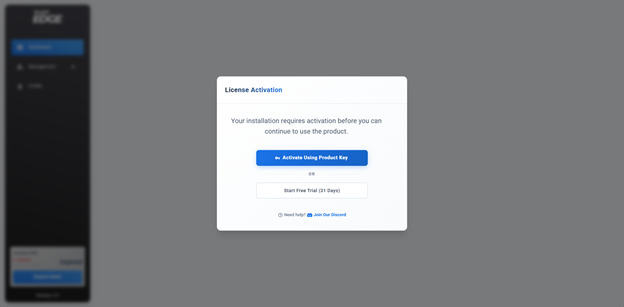
Before using NiralOS EDGE, the product must be activated with either a Product License or a Trial License.
When the License Activation wizard appears, choose one of the following options:
- Activate Using Product Key
- Activate Using Trial License
Important
An active Internet connection is required to complete license activation.
Activate Using A Product Key #
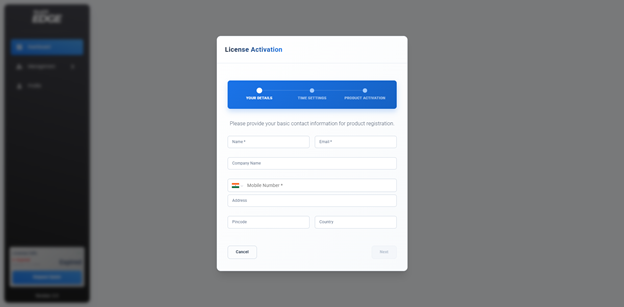
Customers who have purchased a NiralOS EDGE license should use this option.
Step 1: Enter Your Details #
Provide the required registration information.
| Field | Description |
|---|---|
| Name | Full name of the primary administrator |
| Email address used for registration | |
| Company Name | Organization or company name |
| Mobile Number | Mobile number including country code |
| Address | Organization address |
| Pin Code | Postal / ZIP code |
| Country | Country where NiralOS EDGE is deployed |
After completing all mandatory fields, click Next.
Step 2. Select The Time Zone #
Choose the time zone where the NiralOS EDGE deployment is located.
The selected time zone is used for:
- Alerts
- Audit Logs
- Scheduled Tasks
- Reports
- Event Timestamps
Click Next to continue.
Step 3. Activate Using Product Key #
Paste the Product Key received from your reseller or NiralOS into the Product Key field.
Example
- XXXXX-XXXXX-XXXXX-XXXXX-XXXXX
Click Activate.
NiralOS EDGE securely validates the Product Key with the licensing server.
If the Product Key is valid, the product is activated immediately.
Important
A Product Key is single-use. Once successfully activated, the Product Key becomes permanently associated with that installation and cannot be reused on another system.
Activate Using A Trial License #
If you would like to evaluate NiralOS EDGE before purchasing, select Activate Trial License.
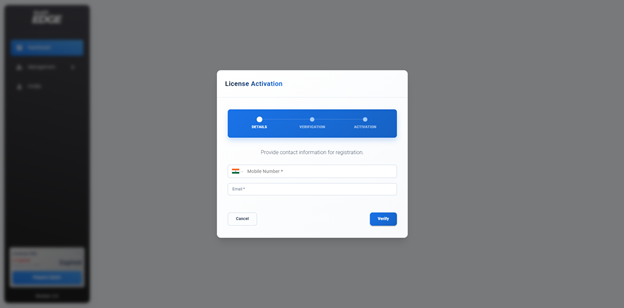
Step 1: Enter Email Address & Mobile Number #
Provide the following information.
| Field | Description |
|---|---|
| Email Address | Valid email address |
| Mobile Number | Mobile number including country code |
Click Send OTP.
Step 2: Verify OTP #
NiralOS EDGE sends a unique 6-digit One-Time Password (OTP) to both:
- Your registered email address
- Your registered mobile number
Enter both OTPs in their respective fields.
Click Verify OTP.
If both OTPs are validated successfully, the registration form is displayed.
Step 3: Enter Registration Details #
Complete the registration form.
| Field | Description |
|---|---|
| Name | Full name of the administrator |
| Company Name | Organization or company name |
| Address | Organization address |
| Pincode | Postal / ZIP code |
| Country | Country |
| Time Zone | Select the deployment time zone |
Review the information and click Activate Trial License. The licensing server validates your information and provisions a Trial License.
Activation Complete #
After successful activation using either method:
- The product license is registered.
- NiralOS EDGE is activated.
- The License Activation wizard closes automatically.
- You are redirected to the NiralOS EDGE Dashboard.
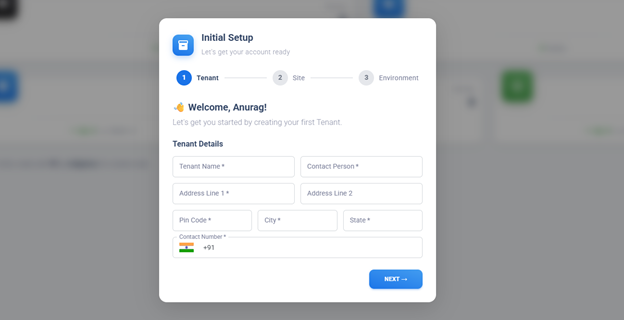
You can now begin configuring your deployment by creating tenants, sites, and connecting Proxmox, Docker, or Kubernetes environments.
Important Notes #
- An active Internet connection is required during activation.
- Product Keys are single-use and cannot be activated more than once.
- Trial Licenses require successful verification of both the registered email address and mobile number.
- Ensure that all registration details are entered accurately before completing activation.
Troubleshooting #
Invalid Product Key #
- Verify that the Product Key has been entered exactly as provided.
- Ensure there are no extra spaces before or after the key.
- Confirm that the Product Key has not already been activated.
Product Key Already Activated #
A Product Key can only be activated once.
If the Product Key has already been used, contact NiralOS Support if you require assistance with license transfer or reactivation.
OTP Not Received #
If you do not receive the OTP:
- Verify that the email address and mobile number are correct.
- Check your email spam or junk folder.
- Ensure your mobile device can receive SMS messages.
- Request a new OTP if the previous one has expired.
Activation Failed #
If activation fails:
- Verify that the system has an active Internet connection.
- Ensure outbound access to the NiralOS licensing service is not blocked by a firewall or proxy.
- Retry the activation process after restoring connectivity.


